
TL;DR:
- Many database professionals struggle to combine SQL and Access due to syntax divergences that cause errors during migration.
- Using Access as a front-end paired with SQL Server enhances security, performance, and scalability for larger or multi-user databases.
Most database administrators and business analysts hit the same wall: they know SQL, they know Microsoft Access, but combining them productively feels like translating between two dialects that are almost the same. The confusion is legitimate. SQL and Access share syntax on the surface but diverge in ways that cause real errors when you try to port queries, migrate backends, or build reliable reporting solutions. This guide cuts through that confusion by covering the critical syntax differences, the architecture decisions that actually matter, how AI tools are changing query workflows in 2026, and practical steps for getting the most out of Access SQL queries.
Table of Contents
- Key takeaways
- SQL and Access syntax: where things break down
- Using Access as a front-end for SQL Server
- AI tools for SQL query generation in 2026
- Writing and running SQL queries in Access
- Access vs. SQL Server: choosing the right tool
- My take on making SQL and Access work together
- Level up your data workflow with Offcut
- FAQ
Key takeaways
| Point | Details |
|---|---|
| Syntax differences cause real errors | Access SQL and T-SQL differ on null checks, wildcards, date literals, and string quoting in ways that break query portability. |
| Access works best as a front-end | Pairing Access forms and reports with a SQL Server backend gives you better security, performance, and scalability. |
| AI tools cut query development time | Schema-aware AI tools can reduce query writing from minutes to seconds, giving analysts more autonomy. |
| Pass-through queries unlock T-SQL | Use pass-through queries in Access to send native T-SQL directly to SQL Server and bypass dialect limitations. |
| Know when to upgrade your backend | Access file-based backends work for small teams, but SQL Server becomes necessary as data volume and user count grow. |
SQL and Access syntax: where things break down
Before you write a single query, you need to understand where Access SQL and T-SQL diverge. The differences are not cosmetic. They cause queries that run perfectly in SQL Server Management Studio to fail silently or throw cryptic errors the moment you drop them into Access.
Here is a comparison of the most common syntax differences that trip up experienced developers:
| Syntax Element | Access SQL | SQL Server T-SQL |
|---|---|---|
| Null check | "IsNull(FieldName)` | FieldName IS NULL |
| Date literal | #2026-05-21# | '2026-05-21' |
| String quoting | Double quotes "value" | Single quotes 'value' |
| Wildcard in LIKE | * and ? | % and _ |
| Boolean true | -1 | 1 |
The wildcard issue alone causes a disproportionate number of bugs. String and wildcard differences between the two environments mean a query like WHERE LastName LIKE "Smi*" works in Access but fails completely in SQL Server, where the equivalent is WHERE LastName LIKE 'Smi%'. Copy-paste that query without adjusting it and you get zero results with no meaningful error message.
Date literals are equally problematic. Access wraps dates in pound signs (#05/21/2026#), while SQL Server expects single-quoted strings ('2026-05-21'). When you are building reports that filter by date range, this difference can produce empty result sets that look like data problems when they are actually syntax problems.
A few practical guidelines for managing these differences:
- Write a syntax cheat sheet and keep it accessible during any cross-platform migration project.
- When adapting T-SQL code for Access, do a systematic find-and-replace on single quotes to double quotes before testing.
- Test null-handling logic explicitly.
IsNull()andIS NULLbehave differently enough that edge cases will surface in production if you do not catch them in testing. - Use the Access Query Designer's SQL view to confirm that Access is interpreting your query the way you intend before connecting it to any form or report.
Pro Tip: When porting queries from SQL Server to Access, the fastest way to catch dialect errors is to run a small test dataset through the query first. A query that returns wrong data is harder to debug than one that throws an error immediately.
Using Access as a front-end for SQL Server
The single biggest architectural shift you can make with Access is to stop treating it as both the interface and the database. Access paired with SQL Server as a backend gives you the familiar Access forms, reports, and VBA logic you already rely on, while offloading data storage and processing to a real database engine.

Here is why this matters in practice. A shared Access .accdb file gives every user with network access to the file itself. File-based Access backends expose data to anyone who can reach the file path, which means row-level security is essentially impossible. SQL Server enforces permissions at the server level, so a user who can open the Access front-end cannot necessarily read, write, or delete data they are not explicitly authorized to touch.
Performance improves for a straightforward reason. When Access is the backend, the entire table is often pulled across the network to the client machine before filtering happens. SQL Server processes the query on the server and only sends the result set back to the client. For tables with tens of thousands of rows, that difference is the gap between a two-second load and a thirty-second one.
"Access and SQL Server are better viewed as complementary parts of a database solution rather than competitors." Why Access Developers Use SQL Server for Security, Speed, and Scale
The practical migration path involves a few key steps: upsizing your Access tables to SQL Server using the built-in Upsizing Wizard, relinking your tables as ODBC linked tables, and then testing every form, query, and report against the new backend. The interface stays the same for end users. The data layer becomes significantly more reliable.
Common pitfalls to watch during migration:
- AutoNumber fields in Access map to Identity columns in SQL Server, but the behavior in multi-user environments can differ.
- Access queries that use Access-specific functions (like
Format()orNz()) will not execute server-side and need special handling. - Refresh linked tables any time you make schema changes on the SQL Server side, or Access will behave unpredictably.
AI tools for SQL query generation in 2026
The conversation about using SQL with Access has shifted meaningfully in 2026 because of AI-assisted query tools. These are not simple autocomplete features. The best of them are schema-aware, meaning they read your actual database structure and generate queries that reference real table and column names.
The accuracy gap between schema-aware and generic AI tools is significant. AI2SQL achieved 90% accuracy in 2026 testing across a 50-query suite, while generic tools without schema context scored as low as 64%. That 26-point difference represents a lot of broken queries in production.
For business analysts, the productivity gain is substantial. AI query generation cuts development time from roughly 20 minutes per complex query to seconds. That shift lets analysts pull their own data without waiting on IT, which changes the reporting cadence for the better.
One consideration worth taking seriously is security. Feeding production schema details into a third-party AI tool raises real data governance questions in regulated industries. Before integrating any AI SQL tool into your workflow, confirm whether the tool stores schema metadata, whether it sends data to external servers, and whether it complies with your organization's data classification policies.
Pro Tip: Schema-aware AI tools need direct access to your database schema to avoid generating invalid queries. Connect the tool to a development or staging schema rather than production to get accuracy without exposing live data.
Writing and running SQL queries in Access
Access gives you two paths to write queries: the graphical Query Designer and the SQL view. For anyone comfortable with SQL, the SQL view is almost always faster and more precise.
Here is a practical workflow for writing and executing Access SQL queries:
- Open a new query in Design view, close the table selector dialog, and immediately click the SQL View button in the ribbon. You are now working directly in SQL.
- Write your SELECT, INSERT, UPDATE, or DELETE statement using Access SQL syntax. Remember the dialect rules from earlier: double quotes for strings,
#delimiters for dates, and*as your wildcard. - Run the query using the red exclamation mark button to verify results before saving.
- Save the query with a descriptive name. Access stores queries as objects you can reuse in forms, reports, and VBA code.
- For reports that require complex aggregations or joins, consider whether the query belongs in a stored procedure on SQL Server rather than in Access.
Access supports pass-through queries that send T-SQL directly to SQL Server for execution. This bypasses the Access query engine entirely, which means you can write native T-SQL without worrying about dialect translation. Pass-through queries are read-only from Access's perspective, so they work best for reporting and data retrieval rather than data modification.
Integrating SQL with VBA opens up a lot of power for advanced scenarios. A few practical points:
- Use
CurrentDb.Executefor action queries (INSERT, UPDATE, DELETE) within VBA modules. - Build query strings dynamically in VBA to handle parameterized filtering, but sanitize any user input before embedding it in a SQL string.
- For complex workflows, consider using ADO (ActiveX Data Objects) to connect directly to SQL Server from VBA and execute T-SQL without relying on linked tables.
Access vs. SQL Server: choosing the right tool
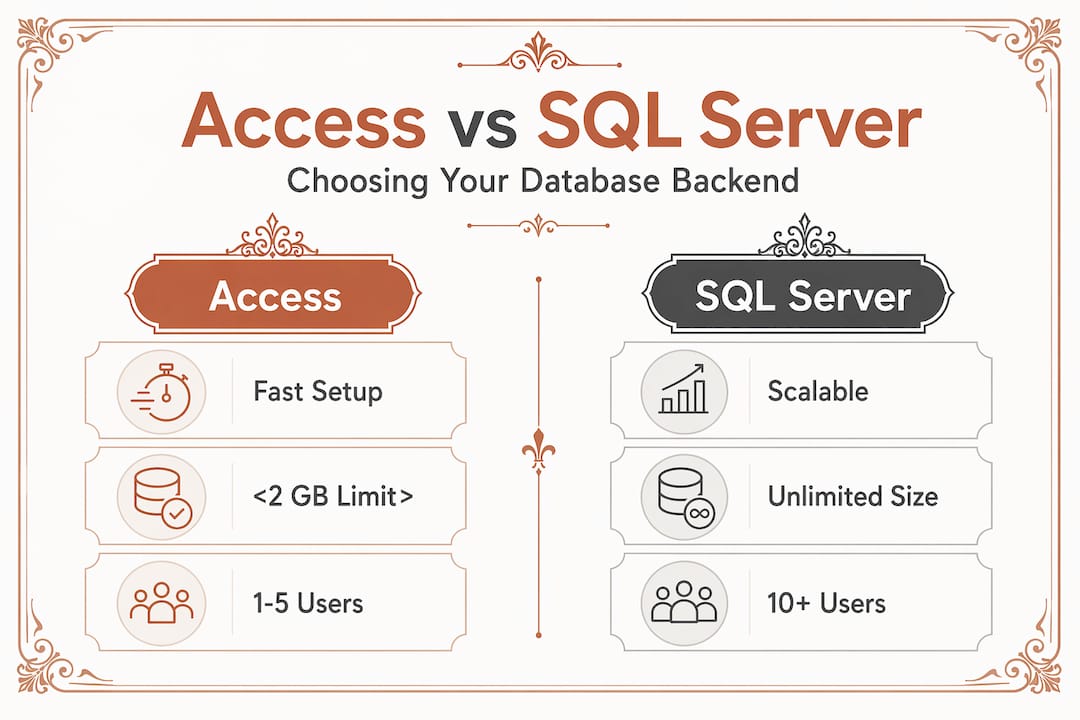
Choosing between a pure Access solution, a SQL Server backend, or a hybrid setup comes down to three factors: data volume, concurrent users, and security requirements.
| Factor | Access backend | SQL Server backend |
|---|---|---|
| Typical data volume | Under 2 GB | Unlimited (practical TB scale) |
| Concurrent users | 1 to 10 (degrades beyond that) | Hundreds to thousands |
| Security model | File-level permissions | Row and table-level permissions |
| Query processing | Client-side | Server-side |
| Backup and recovery | Manual file copy | Built-in transaction logs |
Access works well for small teams running internal tools where the dataset is stable and user count is low. A marketing analyst building a local reporting database with a few linked spreadsheets and some custom forms gets real value from Access without needing SQL Server overhead.
The case for SQL Server becomes clear when any of these conditions apply:
- More than five or six users accessing the database simultaneously.
- Data that changes frequently and requires reliable transaction handling.
- Compliance requirements that mandate audit trails or data access logging.
- Datasets that push beyond a few hundred thousand rows.
The hybrid approach, where Access serves as the front-end interface and SQL Server handles data storage, is the configuration most experienced developers land on. It preserves the reporting and form-building capabilities that make Access genuinely useful while eliminating the limitations that make pure Access file-based databases fragile at scale.
My take on making SQL and Access work together
I've worked with enough Access migrations to know that the most common mistake is treating the move to SQL Server as an event rather than an architecture decision. Admins often upsize their tables, relink them, and consider the job done. What they miss is that the front-end queries, forms, and reports were built with Access SQL dialect assumptions baked in, and those assumptions need systematic review.
In my experience, the teams that get this right are the ones that audit every saved query in Access before migration and document which ones use Access-specific syntax that will not survive a pass-through to SQL Server. It takes an afternoon. It saves weeks of debugging.
On AI tools: I think they fit best as a productivity layer for analysts who know enough SQL to validate output but not enough to write complex joins from scratch quickly. They are not a replacement for understanding the dialect differences covered in this article. An AI tool that generates a query using single-quoted strings and % wildcards for an Access backend is still a tool that produces broken queries. Your job is to know the difference.
The underlying principle I keep coming back to is that Access and SQL Server are genuinely better together than either is alone. The UI depth of Access, combined with the processing power and security of SQL Server, is a pairing that holds up well even in 2026 when there are plenty of newer database tools competing for attention. Invest the time to understand both sides of that relationship and you will build things that actually last.
— Myles
Level up your data workflow with Offcut
If you are managing complex database workflows where data accuracy and design quality intersect, the tools you use at every layer matter. Offcut is built for exactly that kind of professional context. Founders and analysts who work with structured data often need visual deliverables that match the rigor of their back-end systems. Whether you are building a reporting interface or designing a data-driven product, having packaging design resources that are print-ready and professionally crafted saves real time.

Offcut gives you access to exclusive, pre-built design concepts from real designers, at a fraction of agency cost. The work already exists. You just get to use it. Explore design workflow strategies that help you scale without adding overhead, and see how professionals across industries are getting better outputs with less friction.
FAQ
Can Access use SQL for queries?
Yes. Microsoft Access has a built-in SQL view in its Query Designer where you can write and execute SQL statements directly. Access uses its own SQL dialect that differs from SQL Server T-SQL in syntax for null checks, wildcards, date literals, and string quoting.
What are the main differences between Access SQL and SQL Server T-SQL?
The key differences include null checking (IsNull() in Access vs. IS NULL in T-SQL), wildcard and string syntax (* and double quotes in Access vs. % and single quotes in T-SQL), and date literals (#date# in Access vs. 'date' in T-SQL).
When should you use SQL Server instead of Access?
Use SQL Server when you have more than five to ten concurrent users, datasets exceeding a few hundred thousand rows, or compliance requirements that demand server-side access control and audit logging. Access works well for smaller, single-user or light multi-user environments.
What is a pass-through query in Access?
A pass-through query sends SQL commands directly to a connected SQL Server backend without processing them through the Access query engine. This lets you write native T-SQL and execute stored procedures from within Access, which is particularly useful for complex reporting queries.
How do AI tools help with SQL and Access workflows?
Schema-aware AI tools can generate accurate SQL queries by reading your actual database structure, cutting development time from minutes to seconds. The most accurate tools reached 90% query accuracy in 2026 testing, though users still need to validate output for dialect-specific syntax when working with Access.